

IT&T Guide to Microsoft Purview
Sensitivity labels and sharing information safely. A practical guide for your team.
No technical background is required.
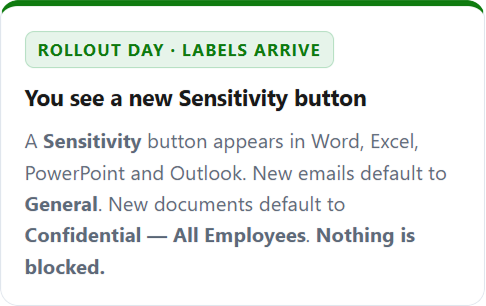
In short: your organisation is turning on Microsoft's standard data protection features in Microsoft 365. Sensitivity labels will appear in Word, Excel, PowerPoint and Outlook, and data loss prevention (DLP) rules will stop confidential files and emails from being shared with people outside your organisation.
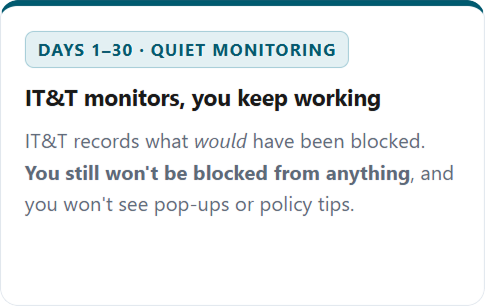
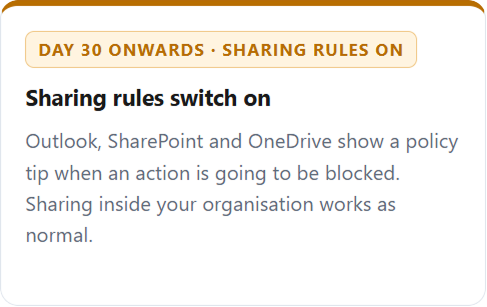
For the first 30 days, nothing will be blocked. IT&T will be monitoring while everyone gets used to the new labels. After 30 days, the sharing rules switch on.
Two optional controls may also be turned on: seven-year email retention and Microsoft 365 Copilot restrictions on Highly Confidential files.
The rollout in three phases
Nothing is blocked until Day 30. Until then,
everything works as it does today.
The four sensitivity labels
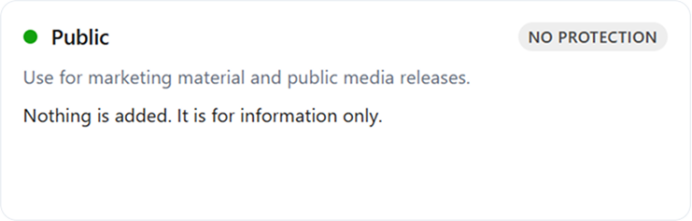
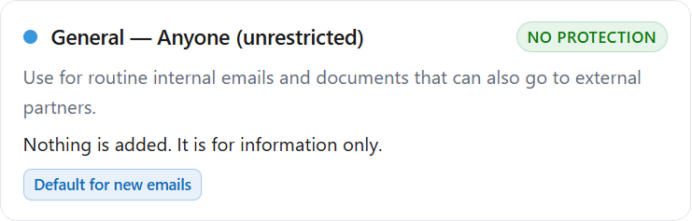
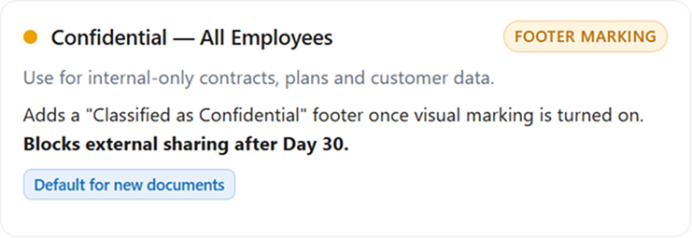
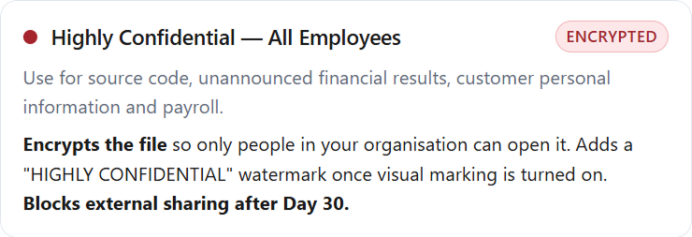
A Sensitivity button or menu appears at the top of Word, Excel, PowerPoint and Outlook. You can choose from these labels.
What it looks like in your apps
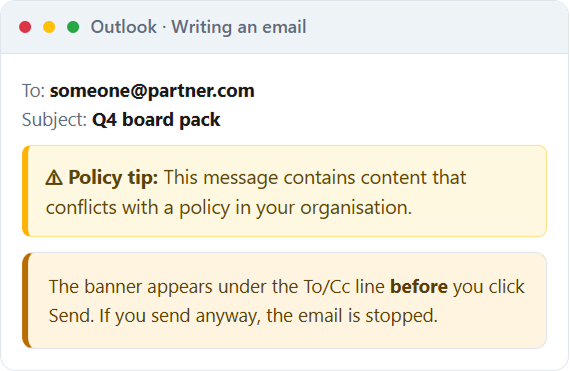
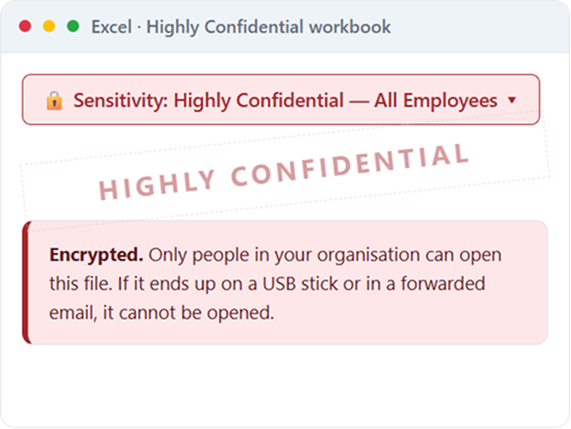
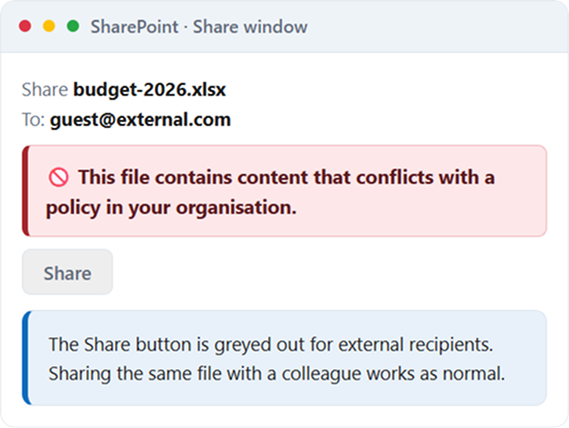
A preview of what you'll see in Word, Outlook, Excel and SharePoint. The exact appearance varies between app versions.
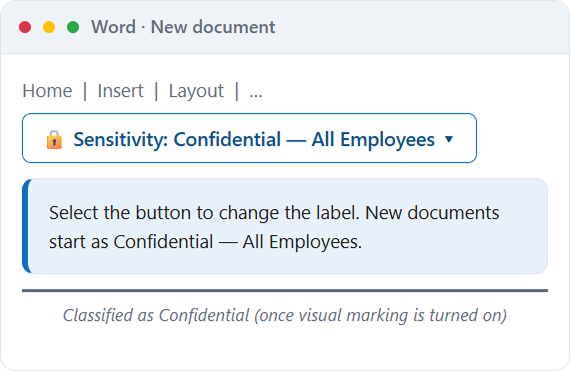

Choosing or changing a label
What if I don't choose a label?

New emails
automatically get General — Anyone (unrestricted). This is fine for routine emails.

New documents
automatically get Confidential — All Employees. This is a safe default. It only matters if you intend to share the document externally: in that case, change the label to General or Public before you send it.

Existing files and emails
are not relabelled. Default labels apply only to new content.

Attaching a labelled file to an email?
If the attachment has a more sensitive label than the email, Outlook automatically raises the email's label to match. You don't need to change it yourself.



Encryption: Highly Confidential only
When you apply Highly Confidential — All Employees to a document:

The file is encrypted. Anyone outside your organisation who receives it, whether through a forwarded email, a USB stick or a leak, cannot open it.
Everyone in your organisation can open, view, edit, save, reply, reply all and forward it.
Copying, printing and macros are allowed for this label, so co-authoring and search work normally in Office. Other encrypted labels added later may work differently. Contact IT&T support if something you expect to work is blocked.
If you open the file offline, you have 30 days before it needs to check in with the server. Open it once while online within those 30 days to reset the clock.

What gets blocked after Day 30, and
what doesn't
Only sharing of Confidential or Highly Confidential content with people outside your
organisation is blocked. Everything else works as normal.
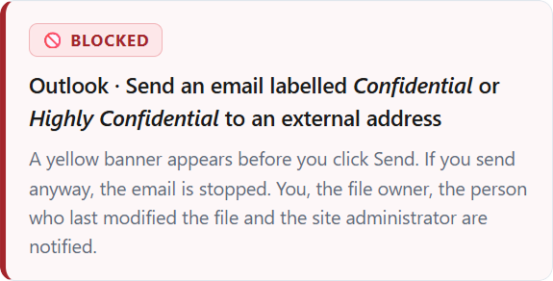
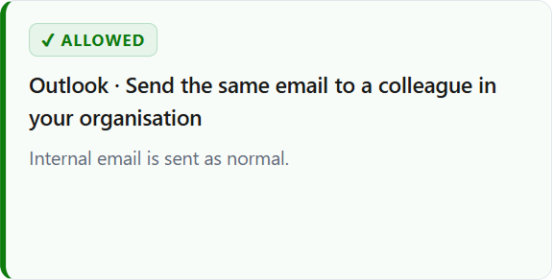
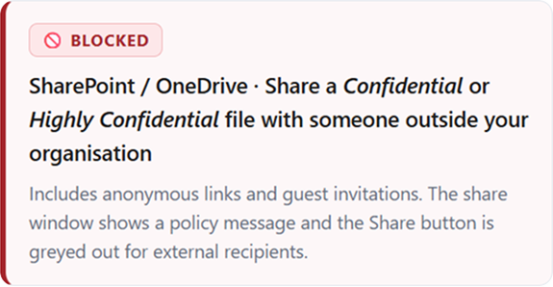
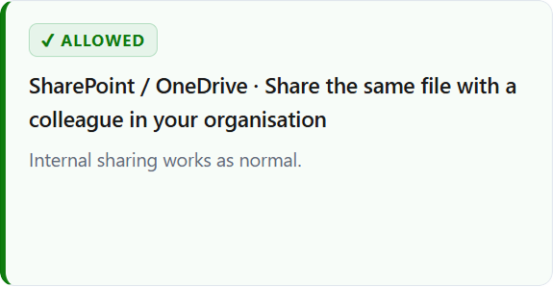
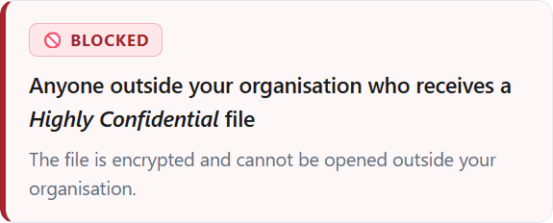
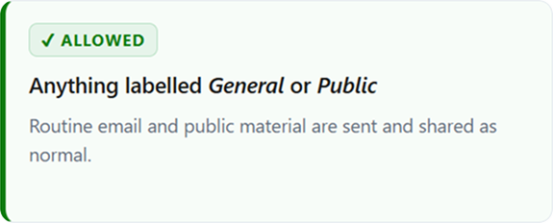
Can I override a block? No. There is no self-service override. To share blocked content, contact IT&T support and explain the business need. IT&T can adjust the rule or share the file through an approved channel.
Email retention
If the optional seven-year retention policy is turned on:
Emails older than seven years are automatically deleted from your mailbox.
This applies to your whole mailbox, including Inbox, Sent Items and Deleted Items. Emails you delete are kept for seven years before they are permanently removed.
You don't need to do anything. There is no setting for you to change, no warning when emails are deleted and no way to recover them after seven years.
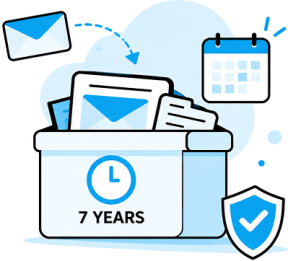
Need to keep something longer? Records such as partnership agreements or correspondence about intellectual property should be moved out of your mailbox: save the file to a SharePoint document library, or save the email as a .msg or .pdf file elsewhere. You can also ask IT&T about a longer retention policy for your team.

Microsoft 365 Copilot
If the optional AI governance policy is turned on:
Copilot ignores Highly Confidential files when it answers questions, summarises content or looks for information. For example, if you ask Copilot to "summarise our Q4 board pack" and the board pack is labelled Highly Confidential, Copilot responds as if it can't access the file. This is intentional.
What you can do: if you need Copilot to use the file and its content allows it, change the label to Confidential — All Employees. Otherwise, open the file yourself.
Quick reference
The day-to-day essentials in one place.

Choosing a label

Public material → Public
Routine email, partners → General
Contracts, plans, customer data → Confidential
Payroll, source code, personal information → Highly Confidential

Lowering a label
Select Sensitivity
Choose the lower label
Type a short reason
Continue working

If you're blocked
Read the banner: it explains why
If the label is wrong, change it
Otherwise, contact IT&T support
Don't keep retrying: each attempt is recorded

Mobile, Mac and web
Outlook mobile: supported
Office for Mac and iPad: supported
Office on the web: supported
Other apps may not open encrypted files

Working from home
Labels and sharing rules work anywhere: they're tied to your account, not the office network
Open encrypted files online at least once every 30 days

Need help?
"Should this be labelled higher?" → your manager or IT&T support
Stuck on a block → IT&T support
Problem with an encrypted file → IT&T support

FAQ
No. Only content created after the rollout receives a default label. You can label older content yourself if you want to.
No. Only emails labelled Confidential or Highly Confidential are blocked from going outside your organisation. Routine General email is sent as normal.
This is expected. If an attachment has a more sensitive label than the email, Outlook automatically raises the email's label to match before it is sent. You don't need to do anything. It stops a sensitive attachment leaving under a less sensitive email label.
Open the document, select Sensitivity, then General or Public. Type a short reason when asked, then share it as normal.
Yes. They are tied to your Microsoft 365 account, not to the office network.
Yes. Outlook for mobile (iOS and Android) lets you apply and view sensitivity labels.
Yes, in Word, Excel, PowerPoint and Outlook on Mac, iOS, Android and the web. Apps from other providers may have trouble opening encrypted (Highly Confidential) files.
After Day 30, it is blocked. During the first 30 days, it is allowed but recorded.
Not if a retention policy applies. Deleted emails are kept in a hidden recoverable area until they reach seven years, then permanently deleted.
Files shared in a Teams chat are stored in OneDrive, so the same sharing rules apply as when you share directly from OneDrive. A Confidential file shared in a Teams chat with an external guest is blocked in the same way.
You'll see three choices: General, Confidential — All Employees and Highly Confidential — All Employees. Choose the one that matches the most sensitive content you expect to keep there. Most everyday team sites are General. Use Confidential for sites with employee or customer personal information, financial information or contracts, and Highly Confidential for source code or regulated material. You can change it later.
Encrypted files check your access every 30 days. If you have been offline for longer than that, the file stays locked until you reconnect. Sign in once on a connected device to open it again.
Your manager or IT&T support. As a rule of thumb, if it contains employee or customer personal information, financial information, source code, contracts or anything regulated, use Confidential or higher.
What this guide doesn't cover
This guide covers sensitivity labels, sharing rules, and the optional email retention and Copilot controls. Your organisation may also have other security controls in place, such as Conditional Access, device compliance checks, multi-factor authentication, blocking of automatic email forwarding or expiry dates on external links. If something happens that isn't explained here, contact IT&T support.
Copyright © 1994 - 2026 IT&T Pty Ltd